How to Use a Battle Map on Your Tablet as DM — A Practical Guide
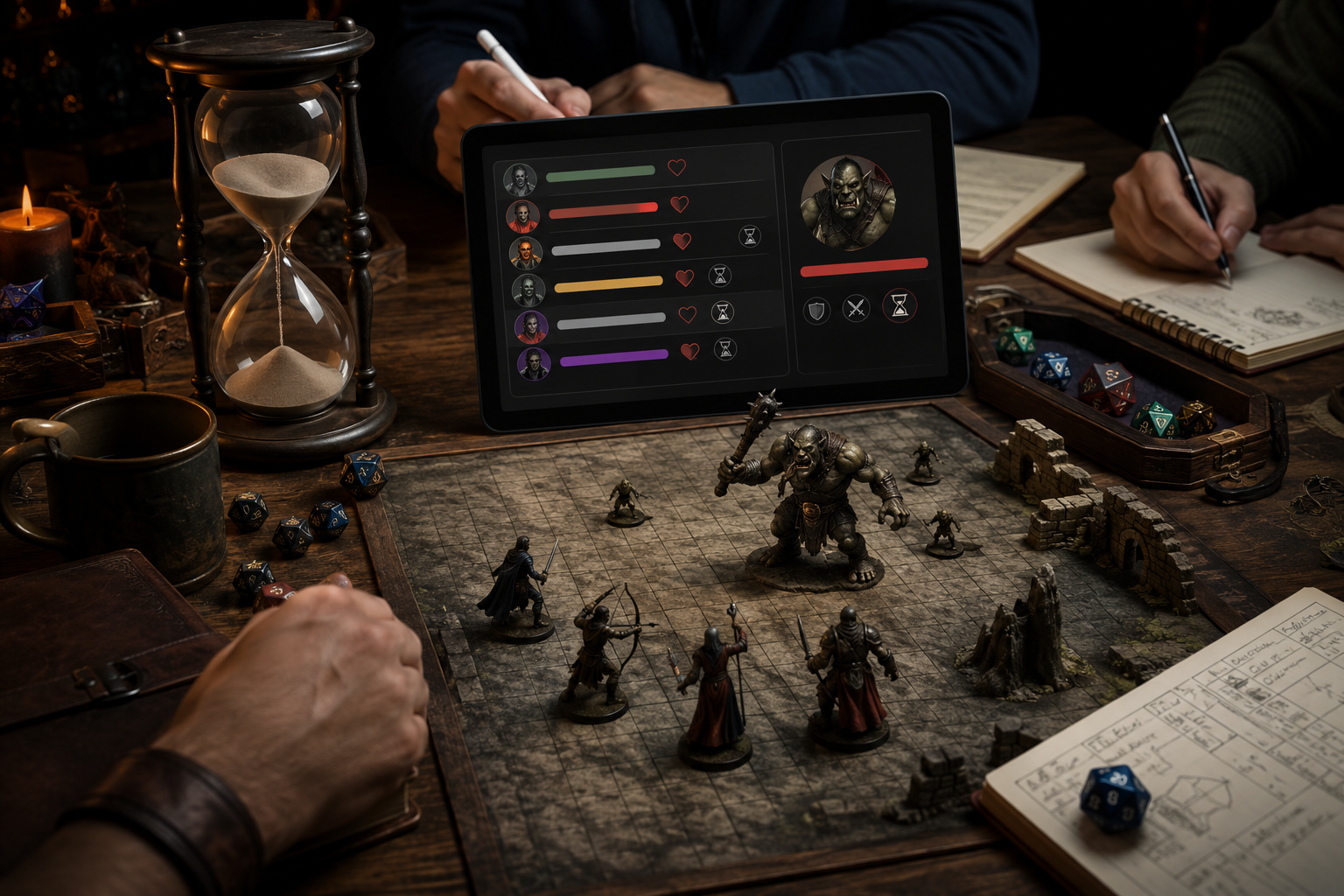
A tablet on the table changes how you run sessions. Monster stat blocks, initiative, maps — all on one screen with no laptop wall between you and your players. Here's the setup that works.
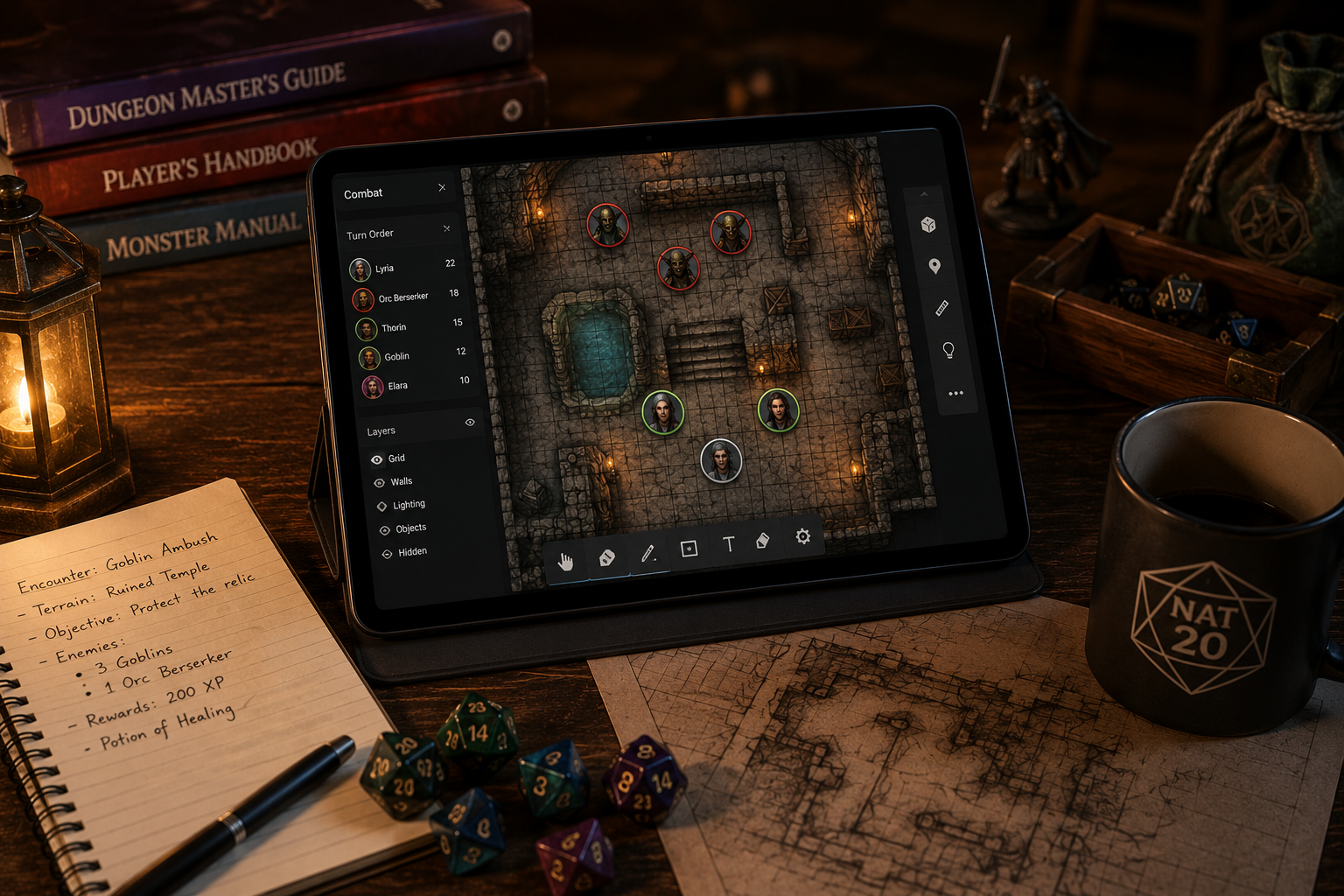
A tablet on the table changes how you run sessions. Monster stat blocks, spell descriptions, initiative order, a shared map — all on one screen you can slide across the table or prop up as a screen. No printed PDFs, no laptop blocking your face, no alt-tabbing between windows.
This is a practical guide to using a battle map on your tablet as DM — what setup works, what doesn't, and how to avoid the common failure modes.
Why a tablet works better than a laptop at the physical table
A laptop between you and your players creates a wall. You look down and away to check anything. Tablets sit flat, rotate, and you can hand one to a player to show them something without disconnecting a cable. For in-person play specifically, the tablet form factor fits the table better than any alternative.
What you need
Any mid-range tablet works — iPad, Android, even a Surface. The requirements are low: a browser and a working Wi-Fi connection. You don't need an app install.
Open Nat20 in the tablet browser. The interface is touch-optimised — tap to move tokens, swipe between views, tap a monster to pull up its stat block. No mouse needed.
Setting up your GM screen on tablet
Create a session in Nat20 before players arrive. Add your monsters to the encounter. Load the relevant ruleset — D&D 5e SRD is built in, so spells, monsters, and items are already there.
What you have on one screen:
- Combat tracker — initiative order, HP for every combatant, conditions
- Battle map — grid with moveable tokens
- Dice roller — tap to roll any die; results stay in the session log
- Ruleset references — tap any monster or spell to open its full stat block
- Session notes — your encounter notes, NPC names, location descriptions
Do players need to be connected?
No. This is the part most DMs don't realise: Nat20 works as a standalone GM tool even when players aren't in the session. You use it at the physical table — your players are sitting across from you — and the tablet is just your GM screen. No one needs to join online.
This means you get the full digital toolkit (searchable rules, dice roller, combat tracker) at a physical table without any of the “everyone staring at a screen” problem.
The battle map at a physical table
Two approaches work well:
- DM-only map— the map is on your tablet. You describe positions verbally or with miniatures on a physical grid. The digital map is your reference, not the players'.
- Shared screen — connect the tablet to a TV or monitor at the table (HDMI or Chromecast), mirror the map, and players see token movement in real time on the big screen. This works especially well for combat-heavy sessions.
Tips for smoother tablet sessions
- Charge before you play. A 4-hour session drains a tablet. Bring a cable or a portable charger.
- Brightness up. Tables with ambient lighting wash out screens. Max brightness prevents squinting.
- Pre-load your encounters. Add monsters before the session starts, not mid-fight. Searching for a stat block while players wait breaks the pace.
- Use the notes panel for boxed text. Paste your room descriptions and read-aloud text into session notes before the session. Tap and read, no fumbling with notepads.
- Roll visible dice for drama, hidden dice for secrets. The dice roller shows rolls in the session log — useful when players join online. At a physical table, roll physical dice for attack rolls (players love seeing them), and use the digital roller for damage calculations or when you need to roll secretly.
What doesn't work
PDF rulebooks on a tablet are terrible for reference during a session — too much scrolling, search is slow, and you lose your place. The in-session ruleset reference in Nat20 is faster for anything in the D&D 5e SRD. For homebrew or systems not in the catalog, keep a notes document open in a second app.
Typing long notes during combat is awkward on a touchscreen. Pre-write your encounter notes before the session. During combat, you're tapping HP adjustments and moving tokens — that works fine. Paragraph-length notes mid-session don't.
Try it before your next session
Create a free Nat20 account, load a session with a couple of monsters, and run through the combat tracker on your tablet for five minutes. You'll know within one encounter whether it fits your style. No subscription, no trial expiry.